As a well-known AI video generator by Kuaishou, Kling AI offers an image to video capability, which transforms images into dynamic videos. With its start/end frame, motion brush, and camera movement features, you can easily create highly tailored videos. Try it below now!
Kling AI's Start/End Frame feature allows users to have great control over the video creation process in terms of transitions and continuity. With this feature you can specify the initial, final, or both frames of a video, and Kling AI will generate the remaining frames for your videos.
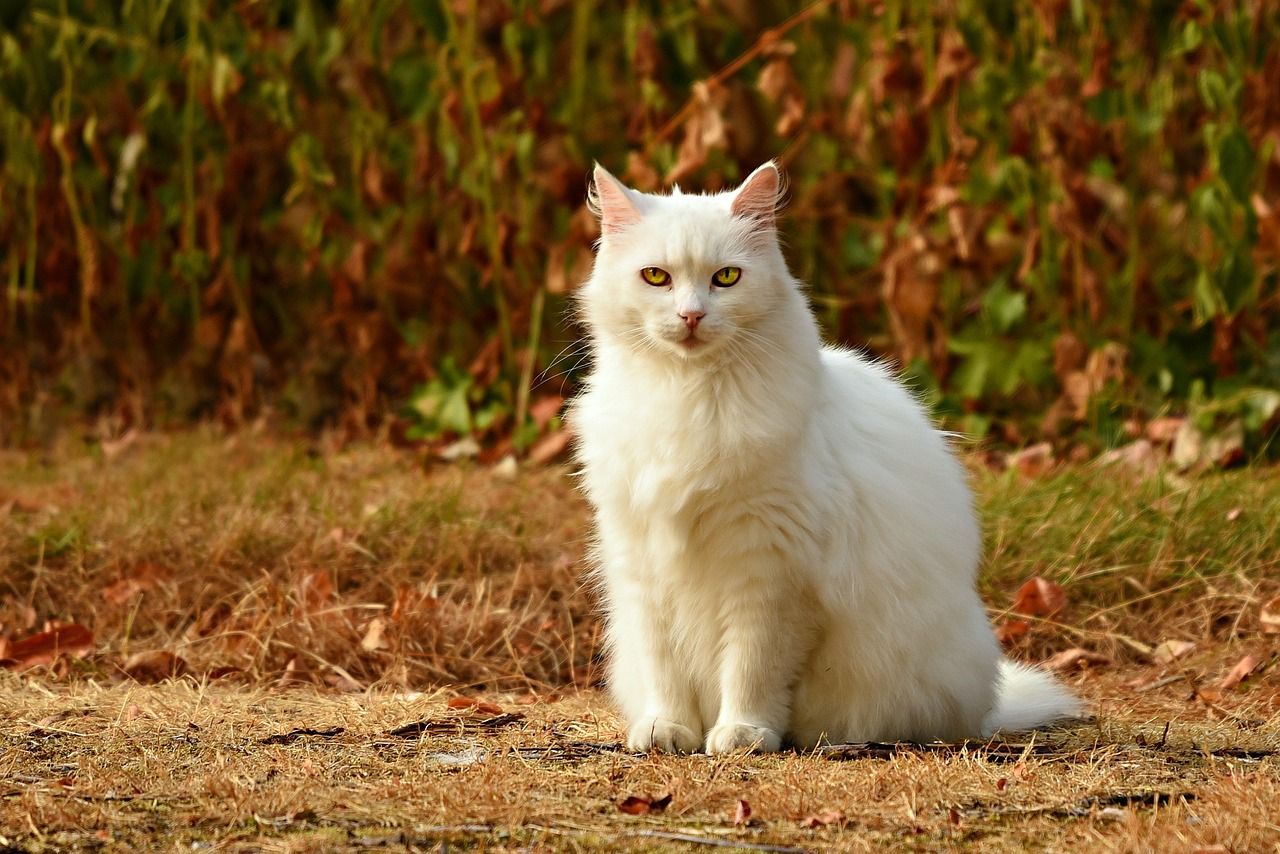
Specify Start Frame Only
You can upload or select an image to serve as the starting point of their video. This image sets the tone and context for the subsequent video content.
Start frame
Output video
(Prompt: The cat walks to the left side.)
Specify End Frame Only
Starting from Kling 1.6, you can also define only the final frame. And with other customization settings, Kling AI will help determine how the video should start.
End frame
Output video
Specify Both Frames
By customizing both the start and end frames, Kling AI can generate videos that feature seamless transitions between them.
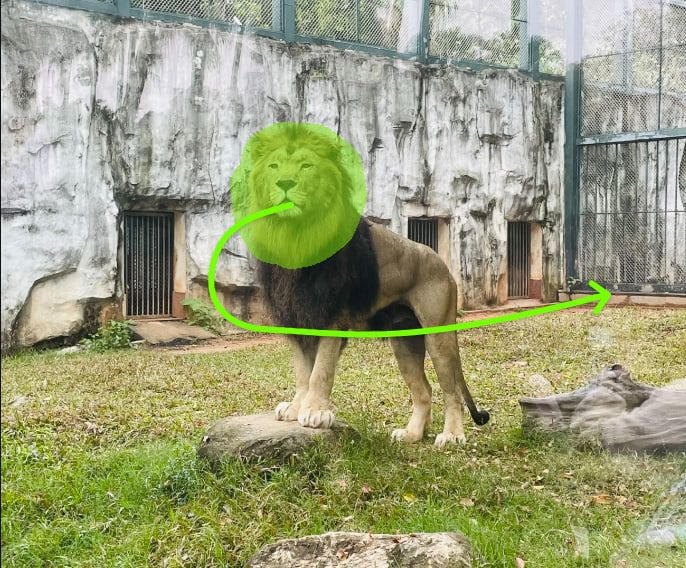
The Motion Brush feature of Kling AI's image to video capability is designed to allow users to control the movement of specific elements within an image. You can define the movement paths for different elements within an image, such as characters or objects, and then Kling AI moves them along those paths.
The feature supports both manual selection and auto-segmentation, where the AI analyzes the image and separates individual components for easier manipulation. This means users can simply click on an object (like a character) and assign movement paths.
Kling AI's Lip Sync feature allows users to upload images to create videos where the mouth movements of the image subjects are synchronized with their input text or uploaded audio. This enables the creators to produce video content that closely mimics real human speech.
In addition to plain speech, Kling AI's Lip Sync feature also allows users to choose a specific emotion such as happy, angry or sad. And the generated video will show the subject speaking with the facial expressions and movements associated with that emotion.
Kling AI introduced the Custom Face Model feature in Kling 1.5 helps you to create personalized video content featuring consistent character representations. With this feature, you can make sure the generated videos will have characters featuring the custom faces
The custom face model is trained with your own data. You can upload multiple high-quality video clips featuring a clearly visible face. And Kling AI will train the model to generate videos that replicate the character's appearance accurately.
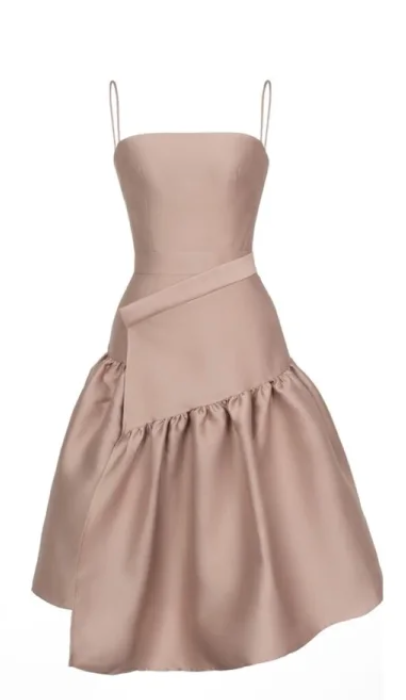
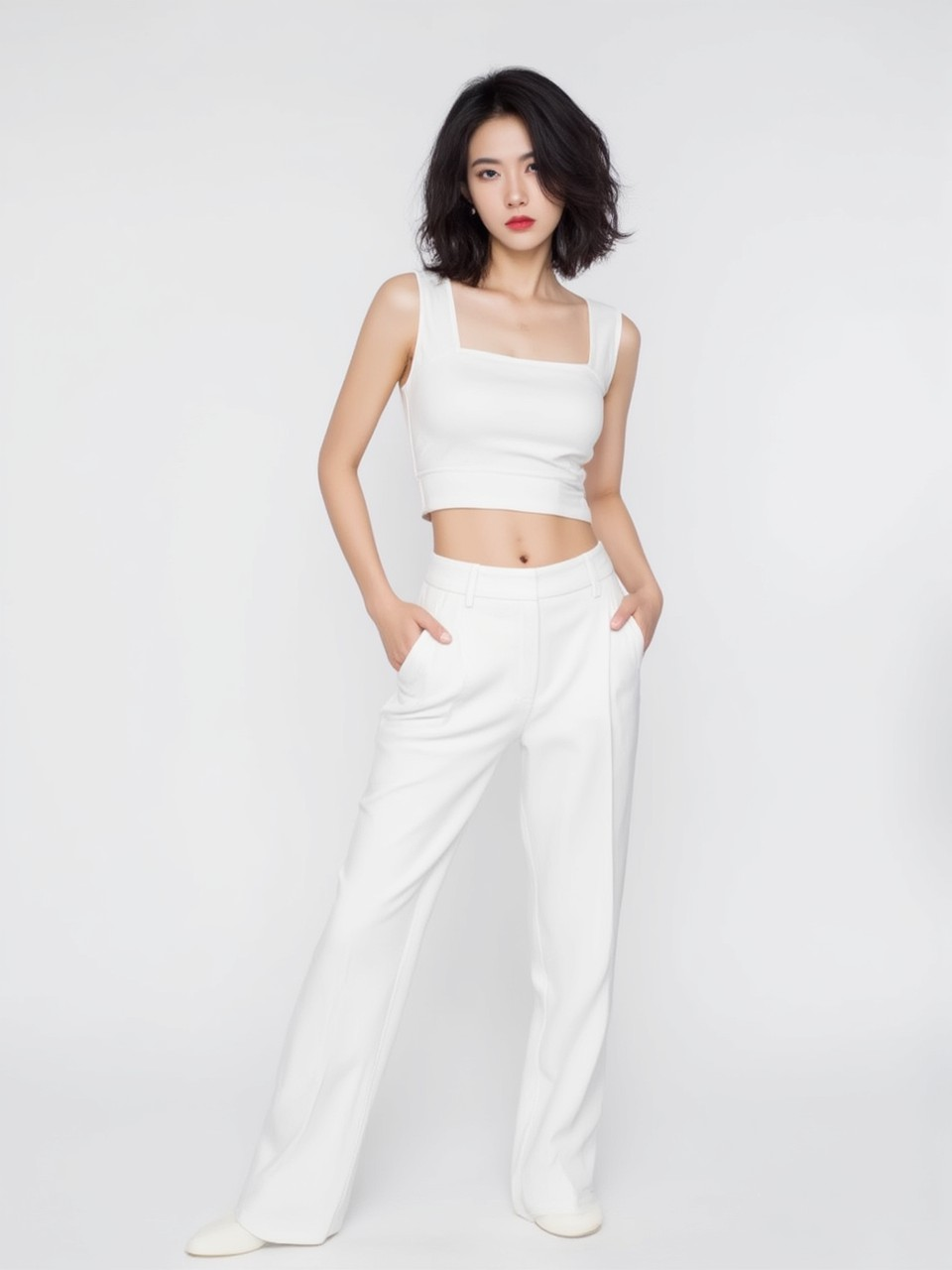
Kling AI's Virtual Try-On feature is an innovative tool allowing users to visualize and interact with clothing. You can use it to try on outfits virtually. By uploading images of the garments and themselves (or use AI-generated models), you can see how different garments fit and flow.
Kling AI's image-to-video tool comes with an camera Movement setting that enhances the dynamism and cinematic quality of videos generated on the platform. It allows users to set different camera movements, such as zooming, panning, tilting and rolling, into their videos, increasing their visual appeal.
The following is a video sample with the rolling camera movement:
I’ve been using Pollo AI mainly for short videos and quick image-to-video tests. The interface is straightforward and it works well even with simple prompts, which is a big plus compared to tools that need long, complicated instructions. The results can be really impressive, and it’s honestly been fun to experiment with. I’d love a bit more consistency on faces when there’s movement, but overall it’s been a solid experience for what I needed.
Awesome website. loads of options and a great way to learn how to work with 'AI' my reasoning for 5 stars is based upon price, versatility and ease of use. Also I would like to add, Pollo AI runs a lot of promos on different AI products as well. I rate their customer service at 5 stars, when I purchased my first subscription my computer crashed the following weekend and I lost all my data and info passwords you name it I lost it, contacted pollo by email they responded quickly and found my info/username and account, and I was able to restore my account.
I have been using Pollo AI for short videos. It is easy to use and works well with simple prompts. Other generators seem to need long drawn out complicated explanations to get even close to what I want.
i tried 220 online img to vid in 2 months, and this is the best online video.I will subscribe for a year; there are many reasons. But freedom is the most important.
More Helpful Articles About Kling AI Image to Video
Explore more useful articles about Kling AI image to video to grasp this function!
First, upload an existing image or generate one using the AI image generator. Then configure the customization options such as Motion Brush, camera movement, etc. After that, start the generation and Kling AI will generate the video you need from your image. For more details, read our guide on using Kling AI image to video
What are the best practices of using Kling AI's image to video feature?
To effectively use Kling AI's image to video feature, use a high-quality image as a reference along with a descriptive text prompt to guide the AI in creating a more dynamic video. Also use the customization options such as camera movements and motion brush to ensure the video output is tailored to your requirements.
Does Kling AI accept NSFW?
Kling AI does not accept any NSFW material. The platform restricts the generation of violent scenes, explicit content, and nudity, adhering to strict content guidelines to promote responsible AI use.
What to do if Kling AI failed to upload images?
If Kling AI failed to upload your images, you should first check the network status and ensure you're uploading images in proper formats. Then you can try clearing your browser cache or restarting your device to see if this fixes your issue. Check out this article about how to fix the Kling AI failed to upload images issue.
What if Kling AI's image to video feature is not working?
If you're experiencing issues with Kling AI's image to video feature not working, you should first check your network status and their system status. If everything is okay, try adjusting your customization options and rewording your prompt to see if it delivers the result you want. Check out this article about fixing Kling AI image to video not working issues.





 Liz Cassidy